
Built-In Stock Image Search for Email Templates
Creating professional, visually engaging email campaigns often depends on finding the right image. To simplify this process, BulkMail now includes a built-in stock image search directly inside the email template editor.
This feature allows you to search, preview, import, and edit royalty-free images without leaving the editor, helping you design emails faster and with fewer distractions.
What the Built-In Image Search Does
The built-in image search lets you:
- Search for high-quality stock images directly from the email template editor
- Insert images instantly into your template with a single click
- Store imported images on BulkMail’s CDN, making them available for reuse
- Resize and crop images using the existing image editing tools in the editor
All images are automatically optimised for email use, ensuring reliable delivery and consistent display across devices.
Images added using this feature are automatically resized and optimised for email, so no manual image preparation is required.
Where to Find the Image Search Tool
The image search is available when editing an email template.
Step 1: Open an Email Template for Editing
- Go to Templates
- Open an existing email template or create a new one
- Launch the drag-and-drop email editor
How to Search for Images
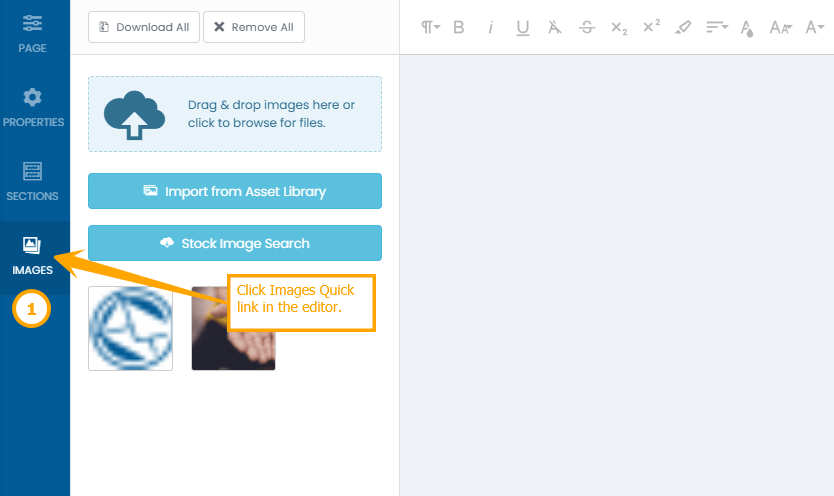
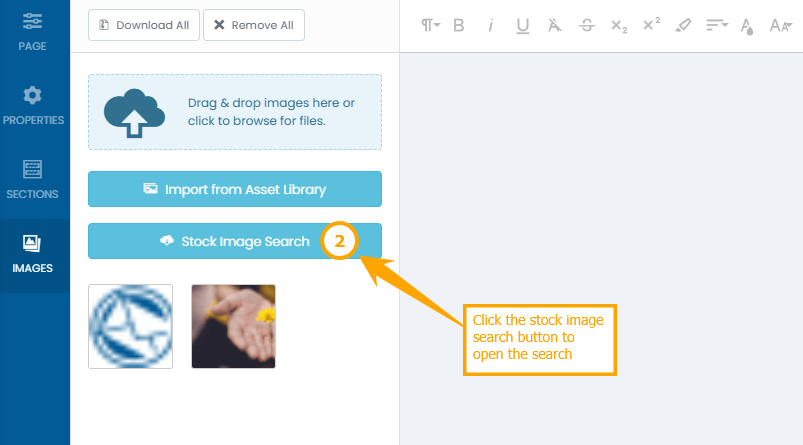
Step 2: Open the Image Search
- Drag an Image block into your email
- Click on the image area to open image options
- Select the search icon to open the built-in image search panel
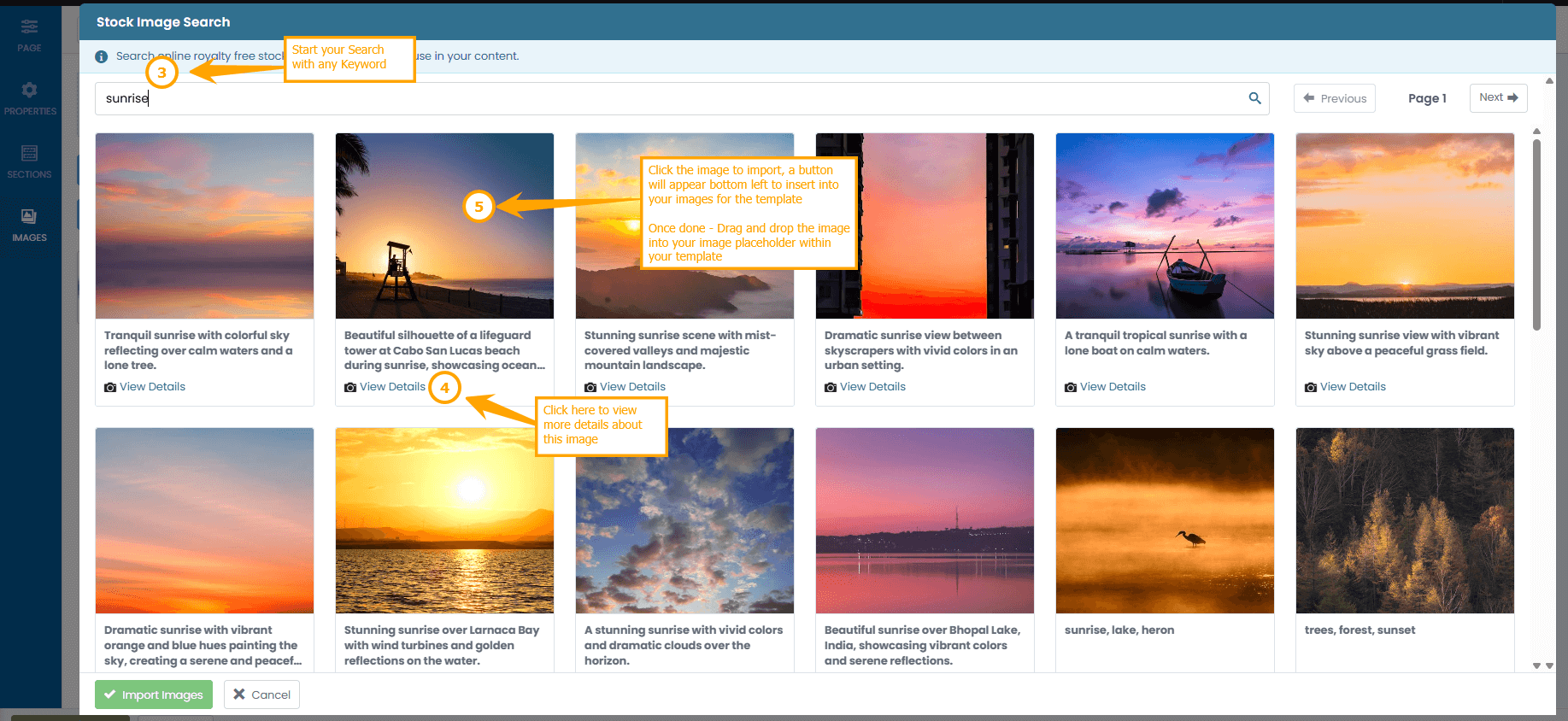
Step 3: Search by Keyword
- Enter a keyword related to your campaign (e.g. product, industry, concept)
- Browse the results directly within the editor
- Preview images before selecting one
Selecting and Adding an Image
Step 4: Insert the Image
- Click on an image to select it
The image is immediately:
- Added to your email template
- Saved to BulkMail’s CDN
- Available for reuse in future templates
Editing Images After Import
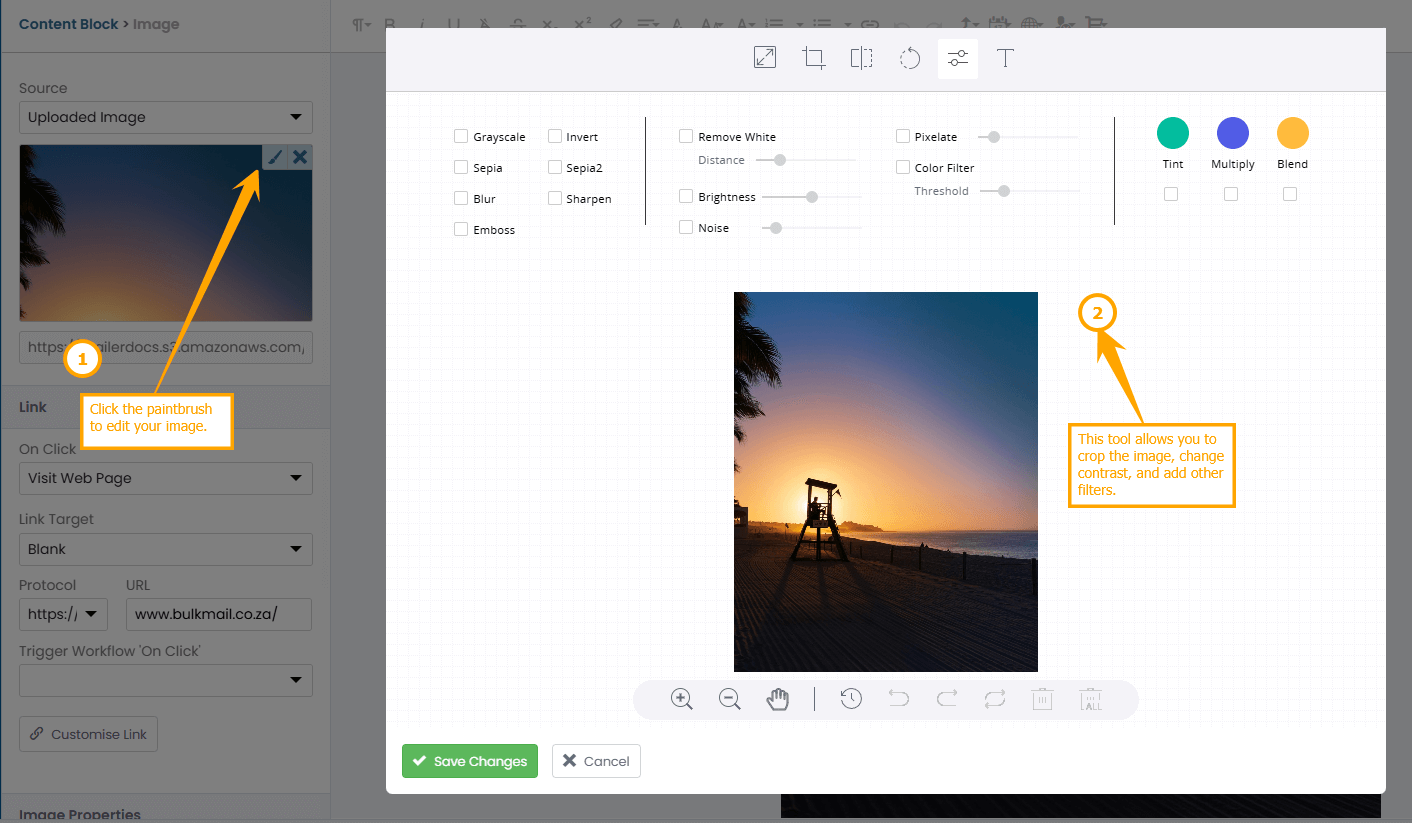
Once an image is added, you can use the existing editor tools to fine-tune it.
Available Image Editing Options
- Resize the image to fit your layout
- Crop to focus on the most important area
- Adjust alignment and spacing within the email
All edits are applied directly in the editor, with no need to upload new files.
Why This Feature Is Useful
- Saves time by removing the need to search and upload images manually
- Improves consistency by keeping assets inside your BulkMail account
- Reduces errors caused by incorrectly sized or un-optimised images
- Keeps your workflow focused, especially when building campaigns under time pressure